Build software that runs on your computer fast, offline and around your actual workflow
We build Windows, macOS and Linux software for workstations where one person spends the whole shift at one computer: warehouse, checkout, production floor, lab. The app keeps running when the connection drops, talks to printers and scanners directly, and connects to your existing accounting system and CRM.
Windows, macOS, LinuxWorks offlineAccounting and CRM integration
A browser-based system handles plenty of tasks. In the five situations below, the browser's own limits start to get in the way — that is exactly where desktop software fits better than the alternatives.
Situation at the workstation
The connection drops at the warehouse, on the production floor or at a branch. The browser system will not open, and the employee falls back to writing on paper.
How desktop software handles it
Records are written to a database on the computer itself first, so the app keeps working with no connection at all. Once the link is back, entries are sent to the server automatically and a log shows exactly what was sent.
Situation at the workstation
Daily work runs to tens of thousands of rows: price updates, stock counts, importing a large Excel file. A browser tab slows down or closes at that volume.
How desktop software handles it
Processing happens outside the browser's limits, using the computer's memory and processor. Imports and report generation run in the background while the employee keeps working on another screen.
Situation at the workstation
The workstation has a receipt printer, a label printer, a scanner or a barcode reader attached. A browser cannot address those devices directly, and a print dialog opens every time.
How desktop software handles it
The desktop app talks to the device driver directly: a label prints with one key, a scanned code lands in the field immediately, a receipt prints without an extra confirmation.
Situation at the workstation
Customer records, price structure or recipes must not leave the company network — an internal policy or a contract requires it.
How desktop software handles it
The app and its database sit on the company's own server or on that computer. Only what you approve leaves the building, and an audit log keeps a record of which employee opened what.
Situation at the workstation
An operator works in a single app all day and enters hundreds of records an hour. Reaching for the mouse on every action adds up.
How desktop software handles it
In a desktop app the whole job runs from the keyboard: shortcuts, a defined field order, search that does not wait on the network. The operator can work without looking away from the screen.
Choosing a platform
Which platform fits your business?
We put the three options side by side, because the wrong platform means rewriting the system later. The comparison below shows which column your case falls into.
Website or web system
When we choose this
People log in from different places and devices, the workstation is not fixed, and the connection is always there.
What it is good for
Access through a link, nothing to install
One release reaches everyone at once
Giving external clients or partners access
Pages that need to be found in search
Mobile app
When we choose this
The employee or customer is on the move: delivery, field work, accepting orders on site.
What it is good for
Phone camera, GPS and push notifications
Short actions done with one hand
An app that stays on the customer's phone
Work done on the road or in transit
Desktop software
When we choose this
The work happens at one computer, across a long shift, with large volumes of data.
What it is good for
Work that does not stop when the connection drops
Direct use of printers, scanners and barcode readers
Bulk imports, reports and file operations
Keeping data inside the company network
In practice many projects run two platforms together: desktop software at the warehouse and the checkout, and a browser-based reporting panel for the manager. Both draw on the same database, so the numbers match.
Directions
Desktop solutions built around your process
We build software in the six directions below. The starting point is always the same — studying how you work today, then turning that into screens.
Warehouse and stock counting
Receiving, transfers, write-offs and stock counts in one window. Counting with a barcode reader, alerts on stock levels, and a finished report ready to print.
Checkout and point of sale (POS)
Sales, returns, opening and closing a shift. Direct receipt printing, per-cashier reporting, and sales that continue when the connection drops.
Production and shop floor control
Work orders, status by stage, material consumption and finished-goods records. Used on a shop-floor terminal with a simple, large interface.
Report and document generator
Contracts, invoices, acts and internal reports built automatically from templates. Output comes out as PDF or Excel and goes straight to print.
Lab and specialist workstation
Entering measurement results, calculation formulas, history per sample and a structured conclusion. Data never leaves the lab network.
Internal database and archive
Documents, client records or a technical catalogue kept in one database. Fast search, role-based permissions and a log of who changed what.
Technology
We choose the technology to match the functionality
We do not have one answer decided in advance. The choice depends on what the software has to do: which devices connect to it, how heavy the interface is, and who will maintain it afterwards.
Electron.js
When we choose this
When the software works with many reports, tables and external systems, and when you or the local market have plenty of web developers.
What it gives you
Shared code and design with your existing web system
Access to the file system and devices through Node.js modules
Fast assembly of complex table and reporting interfaces
Usually easier to find a developer for maintenance later
Flutter Desktop
When we choose this
When the interface is heavy — lots of graphics, live charts, a frequently redrawn screen — or when the same software is also needed on a phone.
What it gives you
The interface is drawn directly, so animation stays smooth
One codebase for the desktop and mobile versions
Its own design language, identical across all three systems
Application size and memory use are usually lower
We justify the choice in writing during the discovery stage: a list showing which requirement called for which technology. If both fit equally well, we pick the one that will be easier for you to maintain.
Integrations
Desktop software connects to the systems at your workplace
The software should not end up as an isolated island. We connect it to the systems you already use and to the devices at the workstation.
The app saves each record to a local database on the computer first, so work does not stop when the link is lost. Once the connection returns, the stored records are sent to the server in order. If one record changed in two places, the app does not silently overwrite it — it shows the conflict in a separate list, and the responsible employee decides which version to keep.
Process
How is desktop software built?
Six stages. Each one ends with a concrete result you can review and approve, so you are not left in the dark until the end of the project.
01
Studying the process on site
We watch how the work is done today: which forms get filled in, which spreadsheet is maintained, where the same mistake keeps happening.
What you end up withA written requirements list and an inventory of the operations to automate
02
Screens and the order of work
We draw the screens for each role and define the sequence of actions: how many keystrokes an operation should take.
What you end up withA clickable prototype and a list of roles
03
Database and integration architecture
We design the data structure, the synchronisation rules and the connection points to external systems.
What you end up withA database schema and an integration plan — which system exchanges what, and how
04
Development and internal testing
We build module by module and test each one separately. Interim versions are handed over for you to review.
What you end up withA working version and an interim report on the work completed
05
Testing at the workstation and training
We install the software on the real workstation, try it together with your staff and adjust it based on their feedback.
What you end up withTrained staff and a short usage guide
06
Rollout and monitoring
We prepare the installer, set up automatic updates and watch how the software performs over the first weeks.
What you end up withAn installer for each platform, a backup routine and a support contact
The timeline depends on the scope of the requirements: a narrow tool for a single workstation takes a few weeks, a multi-role system takes several months. We give the exact timeline at the end of the first stage, once the requirements list is approved.
Pricing
What does the price of desktop software depend on?
There is no ready price table for desktop software, and we are not going to invent one: a single-screen helper tool and a multi-role warehouse system differ in scope several times over. The price is calculated from the factors below.
Factors that shape the quote
Number of screens and user roles
Structure and size of the database
Whether offline mode and synchronisation are required
Which platforms are needed: Windows, macOS, Linux
Integration with existing systems: accounting, CRM, warehouse database
Staff training and the length of the support period
We issue the quote once the requirements list is ready — that way the figure rests on the scope of work rather than on a guess. Approved pricing for our other services is available on the pricing page.
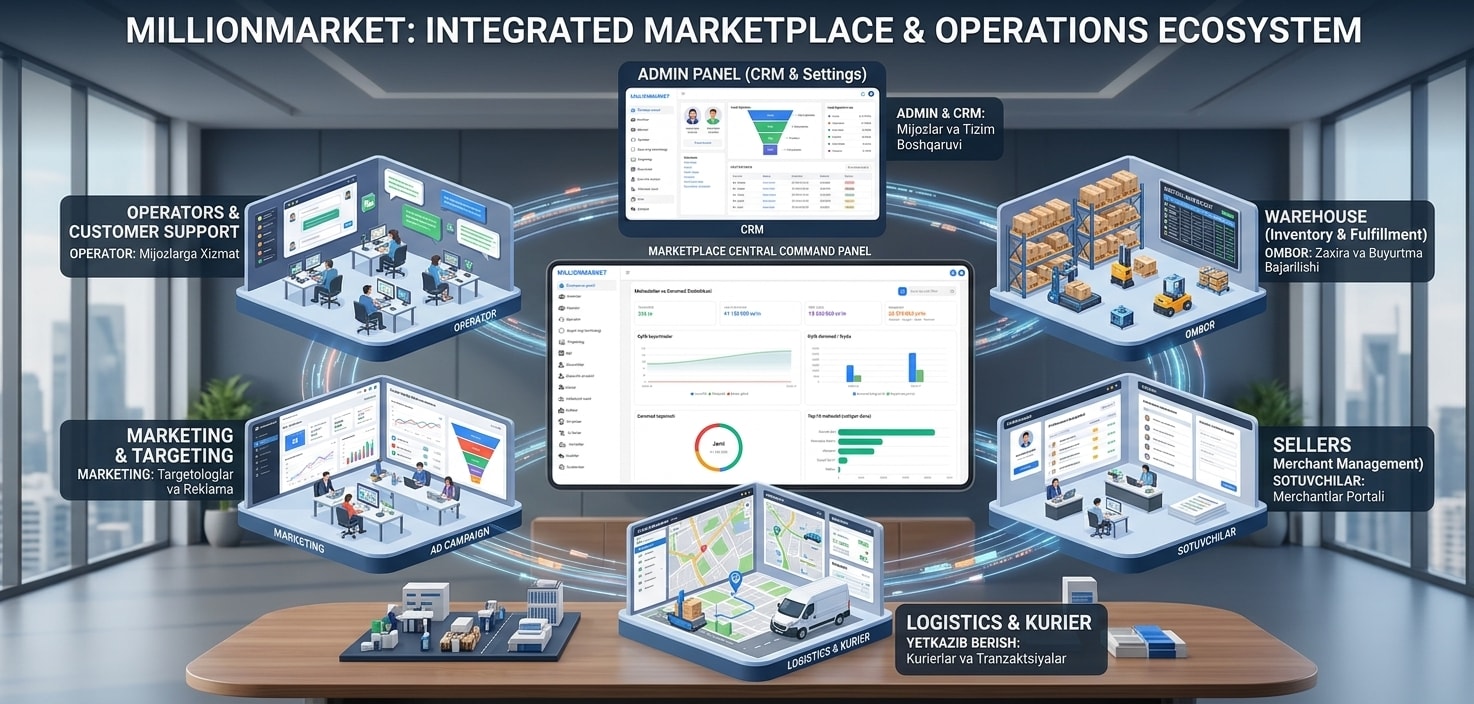
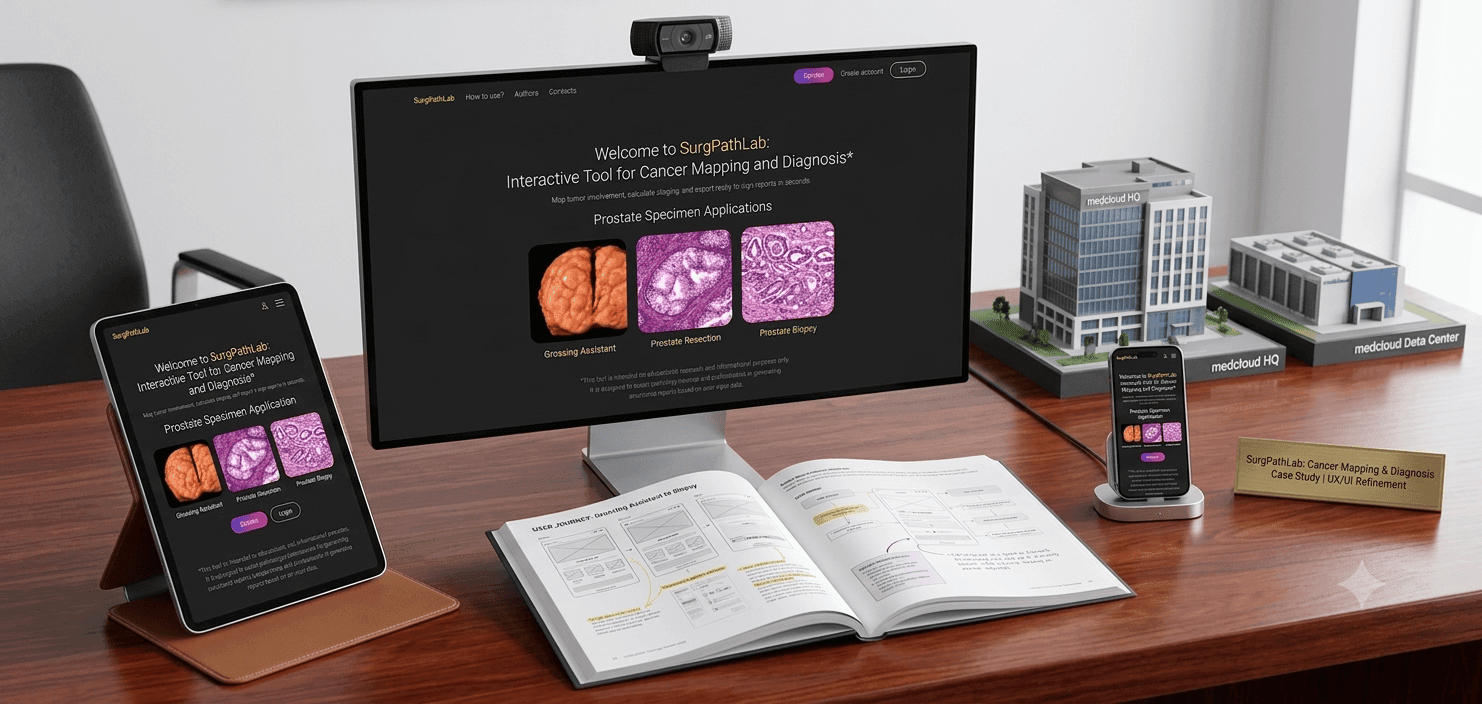
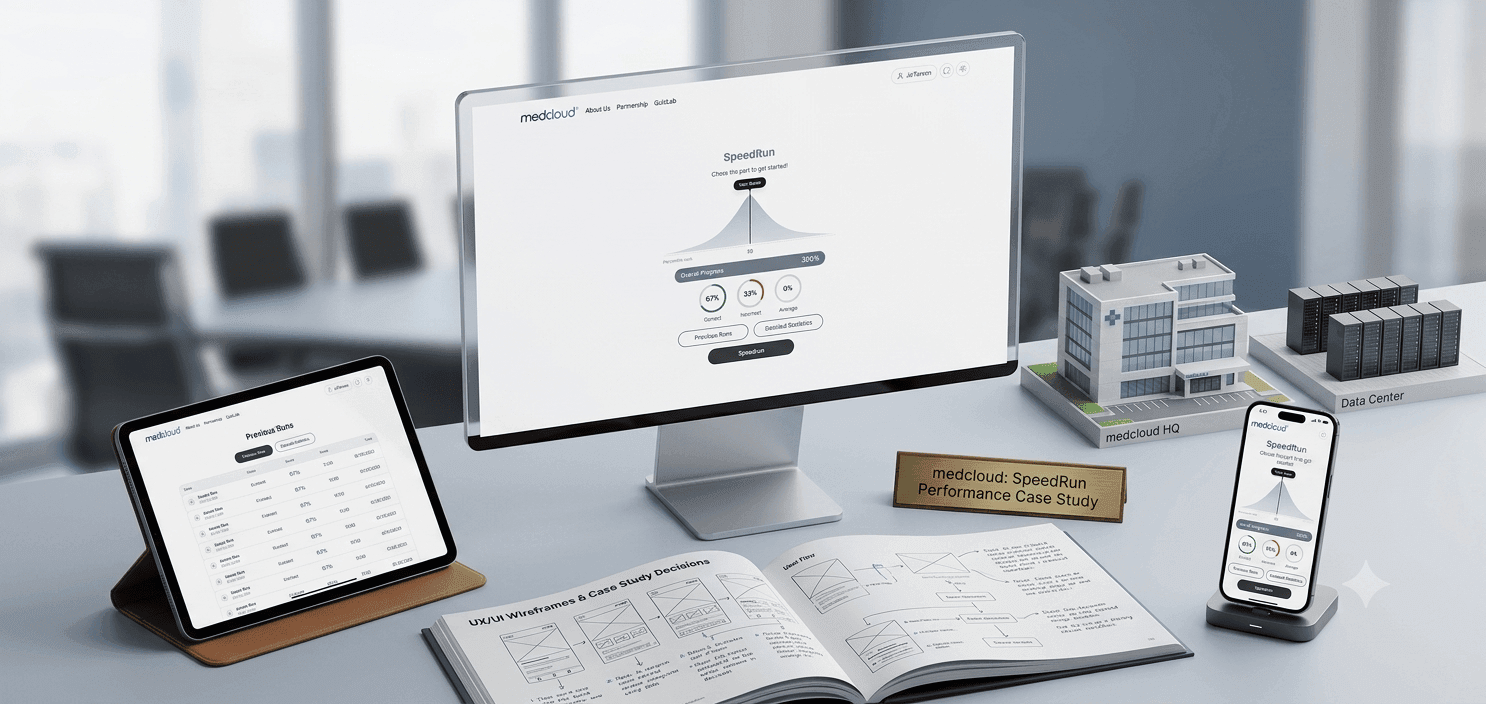
The projects below are close to desktop software in complexity: multi-role permissions, live status and automatic report generation.
To be clear: these projects are built on web technologies and they are not desktop applications. They are here for one reason — they show our experience in analysing a workflow, designing multi-role systems and building reporting logic. Once a desktop project joins our portfolio, we will show it here separately.
The questions we are asked most often before a project starts, answered directly.
A web system opens in a browser and runs on a server, while desktop software is installed on the computer itself. That is why desktop software can work without an internet connection, addresses devices such as printers and scanners directly, and processes large volumes of data using the computer's own resources. A web system, in turn, lets people log in from anywhere on any device.
Yes, if that requirement is set at the start of the project. Records are saved to a local database on the computer first and sent to the server once the connection returns. Offline mode adds to the scope, because the conflict-resolution logic has to be written as well — so it does affect the price.
No. Both Electron.js and Flutter Desktop can produce versions for all three systems from one codebase. Each platform still gets its own testing and installer, so an extra platform stretches the timeline somewhat. In practice many projects only need Windows.
Yes, provided that system offers a way to exchange data: an API, database access, or file-based exchange. During the first stage we examine your system and show in writing how the connection can be made. If there is no way to connect at all, we tell you upfront.
It depends on the scope of the requirements. A narrow tool for one workstation is ready in a few weeks; a multi-role system with integrations takes several months. We give the exact timeline at the end of the first stage, once the requirements list is approved — any date quoted before that would be a guess.
That is your decision. The database can sit on your company's own server, on the workstation itself, or in a cloud you choose. If your internal policy requires that data never leaves the company, we build the software to run entirely on the internal network.
Yes. Once the software is installed on the real workstation, we try it together with your staff and make adjustments based on their feedback. A short usage guide is handed over at the end of the project.
Yes. At the end of the project you receive the source code, the database schema and the technical documentation. If Electron.js was chosen, finding a developer for maintenance is usually easier, because it builds on widely used web technologies.
We set up automatic updates: when a new version is released, the app downloads it and asks the user to confirm. For software running on an internal network, updates are distributed from your own server.
Yes. During the first period after handover we fix defects under warranty. Ongoing support and new features are agreed separately — the duration and scope are written into the contract.
Next step
What usually goes alongside desktop software
Desktop software is rarely the only system in a company. The services below complement it — which ones you need depends on your workflow.
We listen to how you work and tell you plainly whether desktop software really fits or another solution would cost less. If it fits, we prepare the requirements list and the quote.